Mac storage
What's safe to delete on a Mac (and what you should never touch)
Safe to delete, check first, never touch. A plain English guide to freeing up space on your Mac without breaking anything.
- By
- Firefly team
- Published
- Tested on
- macOS 27 Golden Gate
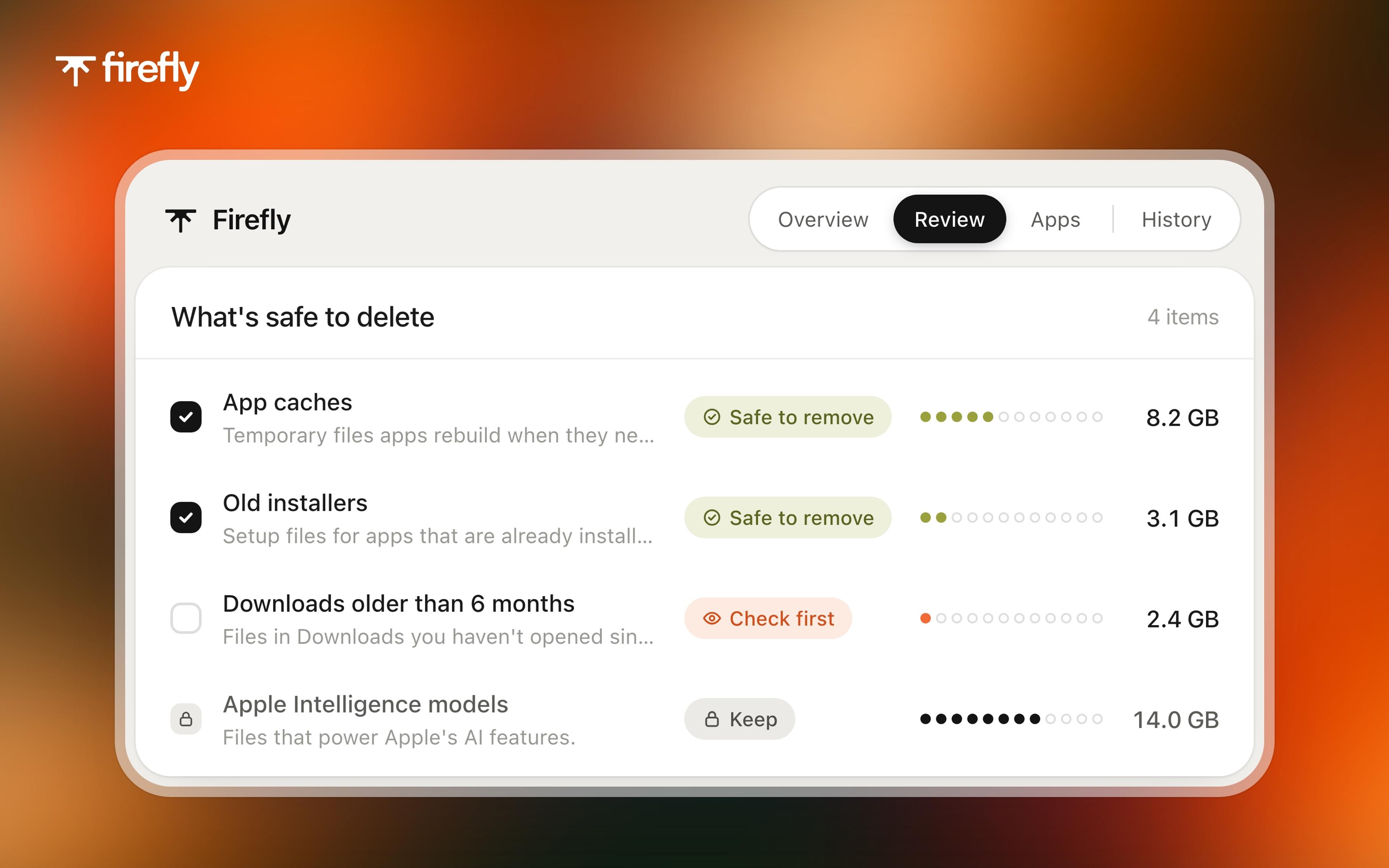
Short answer: Anything you made or downloaded and no longer need is safe to delete: old downloads, installers, iPhone backups, videos you've watched, apps you don't use, and whatever's in the Trash. App caches and leftover app files are usually fine too, but check first. The System folder, the main Library folder and anything you don't recognise should stay exactly where they are.
Here's the full breakdown, sorted into three groups.
Before you delete anything
Two minutes now can save you a very bad afternoon.
- Back up first. If you have Time Machine, let it finish a backup before a big clean up.
- Check whether a file lives in iCloud. If your Desktop and Documents are synced with iCloud Drive, deleting a file on your Mac deletes it on your other devices too.
- Empty the Trash at the end. Files in the Trash still take up space until you empty it.
Safe to delete
These are yours, and removing them won't affect how your Mac runs.
- Old downloads: mostly one off files you've already used. In Finder, choose Go, then Downloads.
- Installers (.dmg, .pkg): not needed once the app is installed. They're usually in your Downloads folder.
- Old iPhone and iPad backups: just copies, as long as your current phone is backed up elsewhere. In Finder, click your device, then Manage Backups.
- Films and shows you've watched: you can download them again from the TV app.
- Apps you don't use: remove them from your Applications folder. You can reinstall them any time.
- Junk and deleted mail: already marked as rubbish. In Mail, choose Mailbox, then Erase Junk Mail and Erase Deleted Items.
- Old user accounts: only if nobody needs that account or its files. Remove them in System Settings, Users & Groups.
- The Trash: nothing frees up until you empty it. Right click the Trash and choose Empty Trash.
Check first
These are often fine to delete, but a wrong move can lose you something or reset an app.
App caches
Caches are temporary files apps keep to load faster. Deleting them is generally safe because apps rebuild them, but they'll grow back. Clear them from inside the app's settings where you can. Leave system caches to macOS, which clears them itself when space runs low.
Leftover files from deleted apps
Dragging an app to the Trash removes the app but often leaves its support files behind. Unlike Windows, macOS doesn't keep one central list of what each app installed, so these files end up scattered. You'll mostly find them in your home folder's Library, inside Application Support, Caches, Preferences and Containers. Delete a folder only when it's clearly named after an app you've already removed.
Photos
Deleting a photo moves it to the Recently Deleted album, where it stays for 30 days. If you're deleting photos to free up space, open Recently Deleted and empty it, otherwise the space doesn't come back. Also, removing a photo from an album doesn't delete it from your library.
Files in iCloud Drive
If Optimize Mac Storage is on, some of these files are only stored in the cloud and take almost no space on your Mac. Deleting them won't help your Mac's storage much, but it will remove them everywhere.
Messages attachments
Years of photos and videos in Messages can add up. You can review large attachments from System Settings, General, Storage, then the info button next to Messages. Deleting them removes them from the conversation.
Never delete
- The System folder. This is macOS itself.
- The Library folder at the top of your disk. Not to be confused with the Library in your home folder. The top level one is shared by the whole system.
- Apps you still use, or their parts. Don't open an app and delete files from inside it. Modern apps are code signed, and changing what's inside them can stop them opening.
- Apple Intelligence files. Turn the feature off in System Settings if you want the space back, rather than deleting files by hand.
- Anything you don't recognise. Strange names are not a reason to delete something. When in doubt, leave it.
Let your Mac help
Before you go hunting, open System Settings, General, Storage. Apple offers three built in options:
- Store in iCloud keeps your Desktop, Documents, photos and messages in iCloud, with only recent files kept on your Mac when space is needed.
- Optimize Storage removes TV shows and films you've already watched and keeps only recent email attachments when space is tight.
- Empty Trash Automatically erases anything that's been in the Trash for more than 30 days.
macOS also clears certain caches and logs on its own when space runs low, including interrupted downloads, staged updates and Safari website data.
FAQ
Is it safe to delete caches on a Mac?
App caches, mostly yes. They rebuild as you use the app, so the space comes back gradually. System caches are best left to macOS.
Can I delete the Library folder?
No. Neither the one in your home folder nor the one at the top of your disk. You can delete specific leftover folders inside your home Library, but never the whole folder.
Is it safe to delete language files to save space?
It's an old trick that isn't worth it anymore. It saves very little and can stop apps from opening, because changing an app's contents breaks its code signature.
Why didn't my storage go down after deleting files?
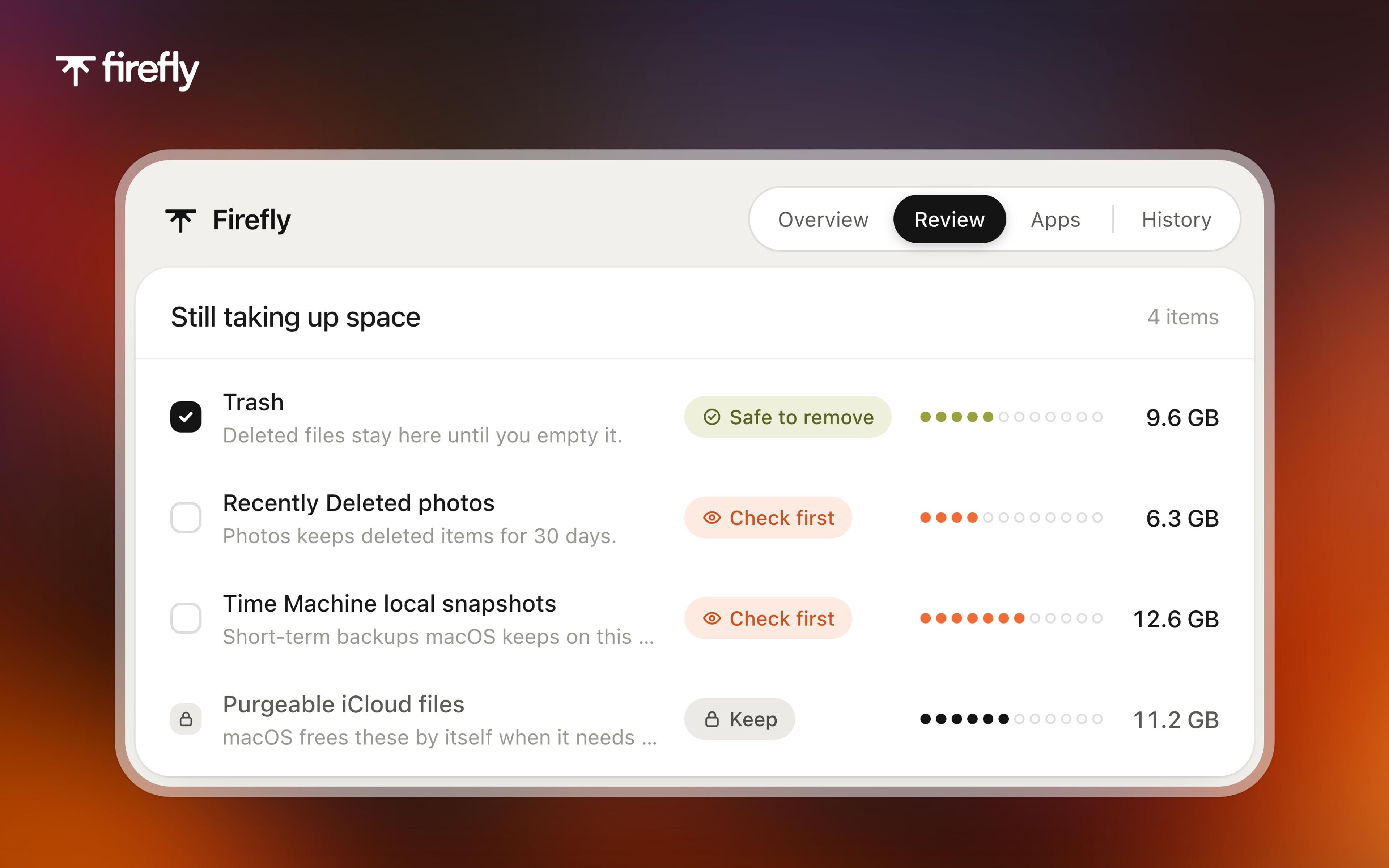
Usually the Trash, the Photos Recently Deleted album, or Time Machine snapshots. See why your Mac storage didn't go down.
What's this huge System Data category?
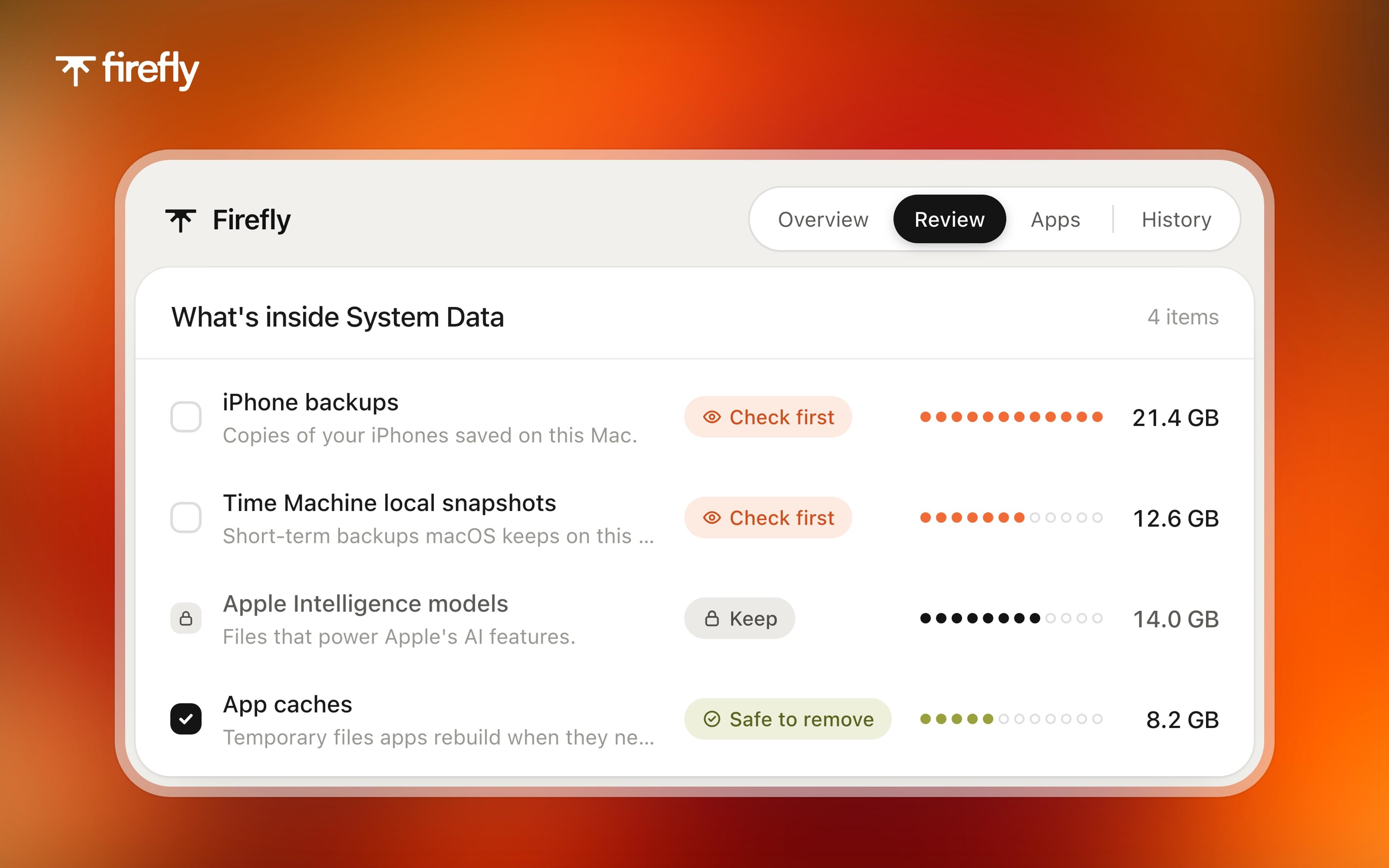
It's a catch all for files that don't fit other categories. We break it down in why System Data is so big on your Mac.
Want this done for you, safely? We're building Firefly to show you what's taking up your storage in plain language and what's safe to remove. Join the waitlist.
Sources

The safest way to clean your Mac
Free up space without the guesswork.
Firefly explains every file before you touch it, keeps what macOS needs locked, and moves only what you approve. Join the waitlist and we'll tell you when it's ready.
Requires macOS 13 Ventura or later.
Keep reading
Mac storage
Why is System Data so big on my Mac? (And what's safe to delete)
System Data is the grey bar nobody explains. Here's what's in it, why it keeps growing, and which parts you can safely clear.
By Firefly team
Mac storage
I deleted files but my Mac storage didn't go down. Why?
You deleted gigabytes and the storage bar didn't budge. Here are the five usual reasons and how to fix each one.
By Firefly team